Voolux (AI)
Learn how to use Voolux, our flagship AI text-to-animation system.
Overview
Voolux is a state-of-the-art AI model built directly into VoolMotion. It understands natural language prompts and transforms them into fully editable After Effects compositions, complete with keyframes and smart easing.
Currently, Voolux supports a few animation categories:
- • Titles: creative title animations in a variety of styles (Lower Thirds, Modern, Callouts, Kinetic, Minimal, etc.)
- • Backgrounds: creative animated backgrounds to build advanced animations, supporting different styles (Abstract, Geometric, Organic, Digital, Twisted, Gradient, etc.)
- • Color Grading: advanced, color-grading-ready compositions to enhance your footage, including Cinematic, Vintage, Urban, Moody, Neon, Gradient, Black & White, etc.
VoolMotion Account
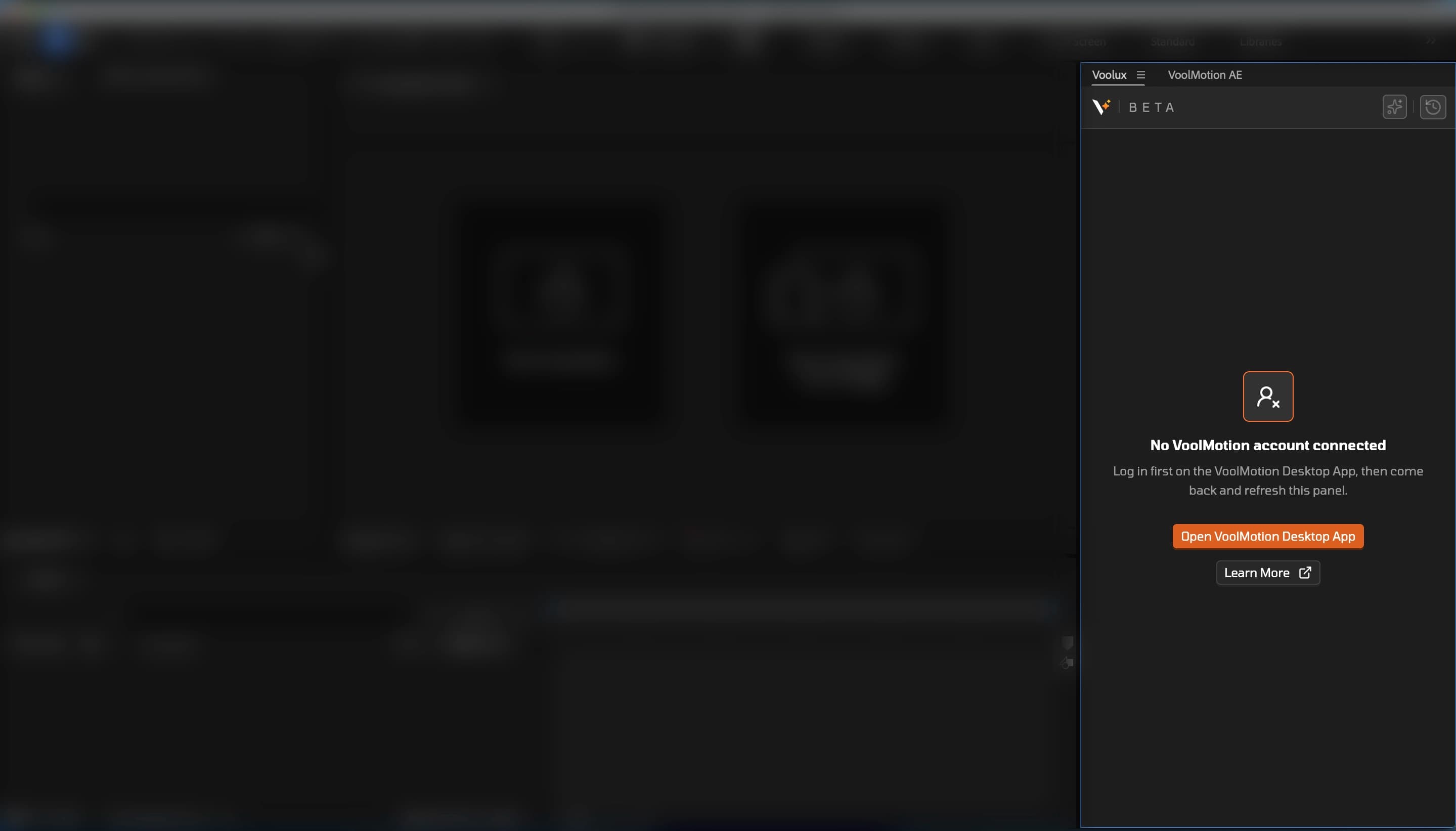
Before generating animations, make sure you have an account and are logged in to the VoolMotion Desktop App. Without an account, you cannot generate animations or access previous generations.
Generate Animations
To generate an animation with Voolux:
- Open the Voolux plugin inside After Effects (Window → Extensions → Voolux)
- In the prompt area, describe your animation. More details may help the AI model to understand your requirements and imagination.
- You may want to edit the Generation Settingsfor better results.
- Click Generate and wait a few moments as Voolux constructs your composition.
- The new composition will automatically be inserted into your active project, just open the generation stack and click "Apply Composition".
Generation Settings
For better results, you can add additional settings to guide the model while crafting the composition:
- Category (required): Choose the category of the animation you want to generate, defaulting to Titles.
- Duration: The composition duration. Animation layers may extend to the end of the composition depending on this duration. For now, the maximum is 60 seconds and the minimum is 10 seconds.
- Frame Rate (FPS): The frame rate of the composition, defaulting to 60 for smoother animation.
- Colors: The colors the model will use to generate the animation. If no colors are provided, the model will use random colors. Note that the model may ignore some colors depending on the style, so complex palettes may lead to poorer results.
- Font Family (Titles Only): You can add up to 5 fonts for the model to use in the design. These fonts come from your machine to make sure they exist when applying the composition.
Keep in mind that these settings are editable after generation (except the category), so you can always tweak them to get the best result.
Generation Quota
Your generation quota, or the number of generations you can run per day, depends on your subscription plan. When you reach your daily limit, you will not be able to generate more animations until the next day. Your generation quota resets at midnight (UTC).
- • Starter (Free): You have 3 generations per day.
- • Pro (Paid): You have 20 generations per day.
- • Premium (Paid): Unlimited generations.
If you need more generations, you can upgrade your subscription plan.
Some generations may fail due to server maintenance or other issues. In this case, the generation will not be counted in your quota.
Generation Limitations
Voolux model families are constrained by the following limitations:
- • Logged-in User: You must be logged in viaVoolMotion Desktop Appto use Voolux.
- • Rate limit: You can add 3 generations at a time to the queue. If you need to add more, you must wait for the previous generations to finish.
- • Generation time: Each generation takes between 10 seconds and 2 minutes, depending on the complexity of the animation.
- • English Only: Voolux currently understands only English prompts. Other languages are not supported yet.
As the Voolux plugin is built on top of After Effects, some issues may come from After Effects itself, so make sure you have the latest version of After Effects installed.